
5 Zapier Automation Examples for Digital Marketers
Summary
This blog explores five practical Zapier automation workflows that help digital marketers simplify lead collection and data transfers. It explains how to connect Meta Lead Ads, Google Ads, website forms, LiveChat, and Hello Bar with Google Sheets and CRM platforms such as LeadSquared and Zoho CRM. Each example demonstrates how automation reduces manual data entry, organises customer information, and supports faster sales follow-ups. The blog also covers how beginners can create their first Zap and answers common questions about Zapier automation.
These five examples follow a useful lead-generation journey. A visitor may discover a business through an advertisement, submit a website form, start a live chat, or subscribe through a website bar. Zapier can connect each source to the team's tracking or CRM tools.
Example 1: Meta Lead Ads to LeadSquared CRM
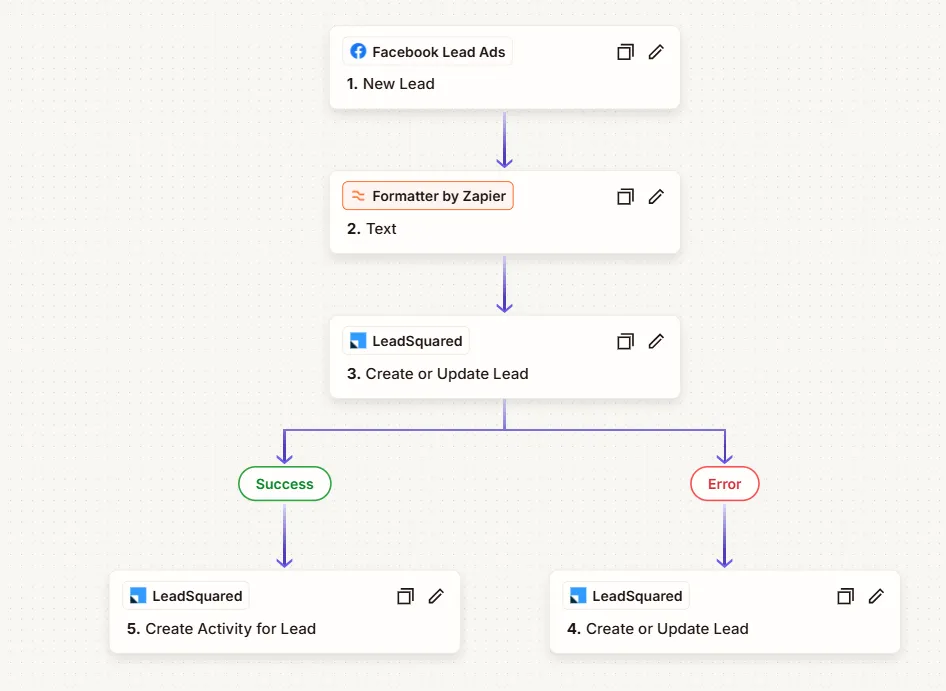
Workflow: Facebook Lead Ads → Formatter by Zapier → LeadSquared CRM → Conditional CRM actions
Meta lead forms help businesses collect enquiries directly from Facebook and Instagram advertisements. Without automation, marketers may need to export new leads and upload them into their CRM.
In the workflow shown, Zapier receives a new Facebook Lead Ads submission, formats part of the text, and then creates or updates a lead in LeadSquared.
How it works:
- New Lead: A person submits a Facebook or Instagram lead form.
- Format Text: Formatter by Zapier prepares the selected data field for the CRM.
- Create or Update Lead: LeadSquared receives the available contact details.
- Follow a Branch: The screenshot includes branches labelled Success and Error.The configured branch determines whether Zapier creates a lead activity or runs another create/update lead action.
The branch names alone do not prove that every CRM failure is automatically recovered; that depends on the rules configured in the Zap.
Why it's useful: New advertising enquiries become available in the CRM without repeated exports, and the additional activity step can help record a follow-up event.
Best for: Performance marketers, educational institutes, and lead-generation businesses.
Example 2: Website Forms to Google Sheets and Zoho CRM
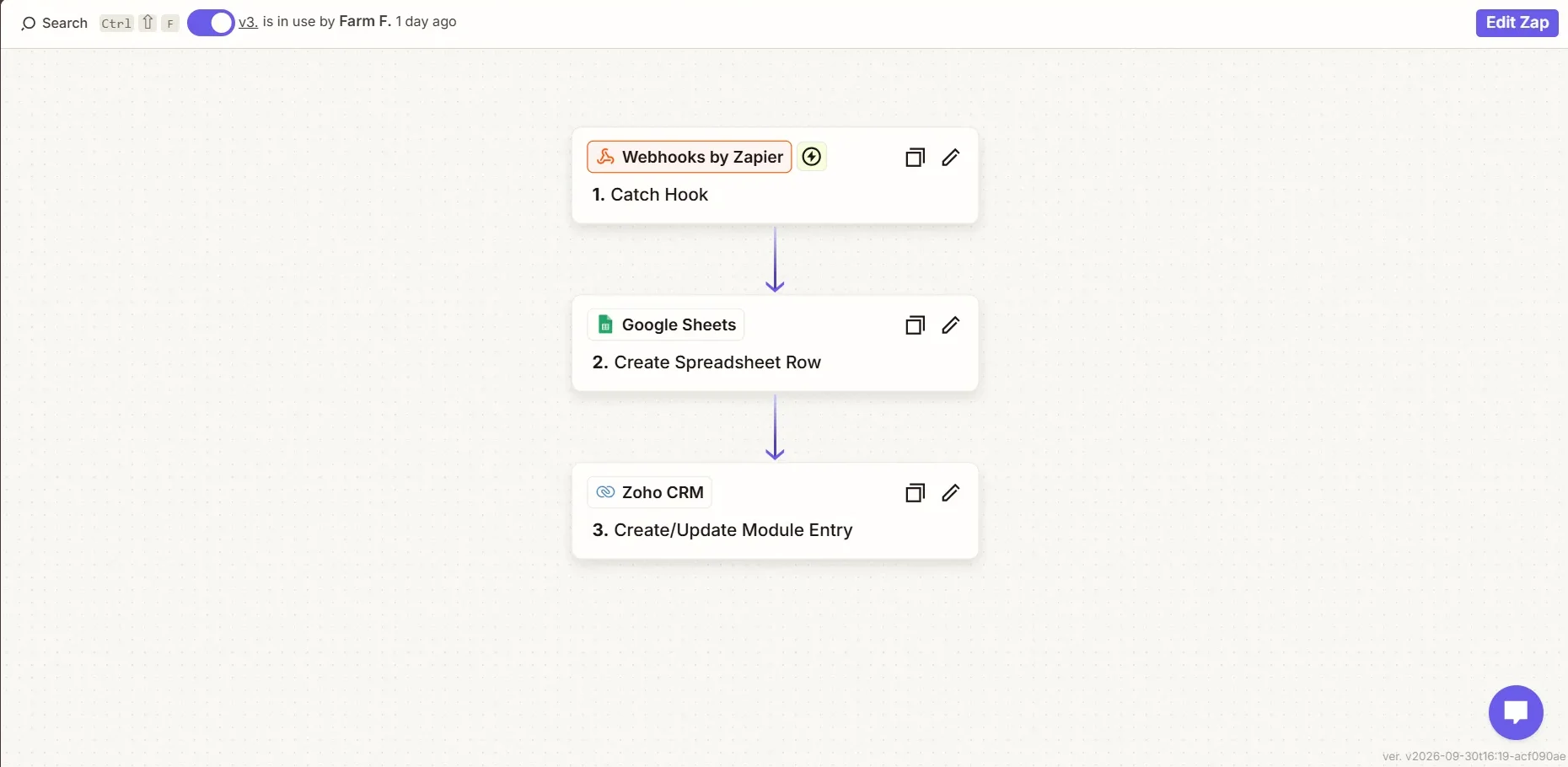
Workflow: Website Form → Webhooks by Zapier → Google Sheets → Zoho CRM
A business website often collects leads through contact forms, enquiry forms, and landing pages. A WordPress form builder, such as Fluent Forms, can send submission data to a webhook when configured to do so.
How it works:
- A visitor completes a form on the website.
- The form sends the submission to Zapier's webhook address.
- Google Sheets creates a new row with the submitted details.
- Zoho CRM creates or updates a record in the selected module.
The spreadsheet provides an accessible log of enquiries, while Zoho CRM supports the sales follow-up process. Both actions can use the original webhook data.
Why it's useful: Website enquiries are stored in one spreadsheet and made available in the CRM without separate data entry.
Best for: WordPress websites, service businesses, landing-page campaigns, and marketing agencies.
Example 3: Google Ads Lead Forms to Google Sheets
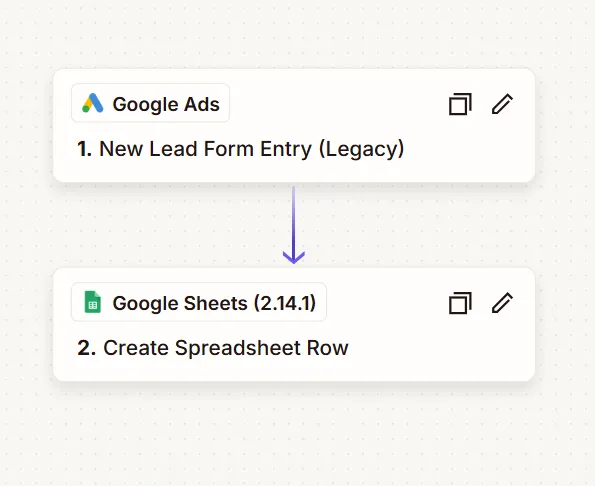
Workflow: Google Ads Lead Forms → Google Sheets
Google Ads can collect enquiries through native lead forms. For marketers running multiple campaigns, exporting those submissions manually can make lead tracking difficult.
This two-app workflow automatically records new Google Ads form submissions in Google Sheets.
How it works:
- A potential customer submits a native Google Ads lead form.
- Zapier detects the new lead form entry.
- Google Sheets creates a row using the available name, email, phone, and form information.
Why it's useful: Marketers can keep a central record of native Google Ads lead form enquiries without downloading a report every day.
Best for: Google Ads specialists, campaign managers, and businesses running lead-form advertisements.
Important: This workflow is for native Google Ads lead forms, not enquiries submitted through a separate website landing page.
Example 4: LiveChat to Google Sheets and Zoho CRM
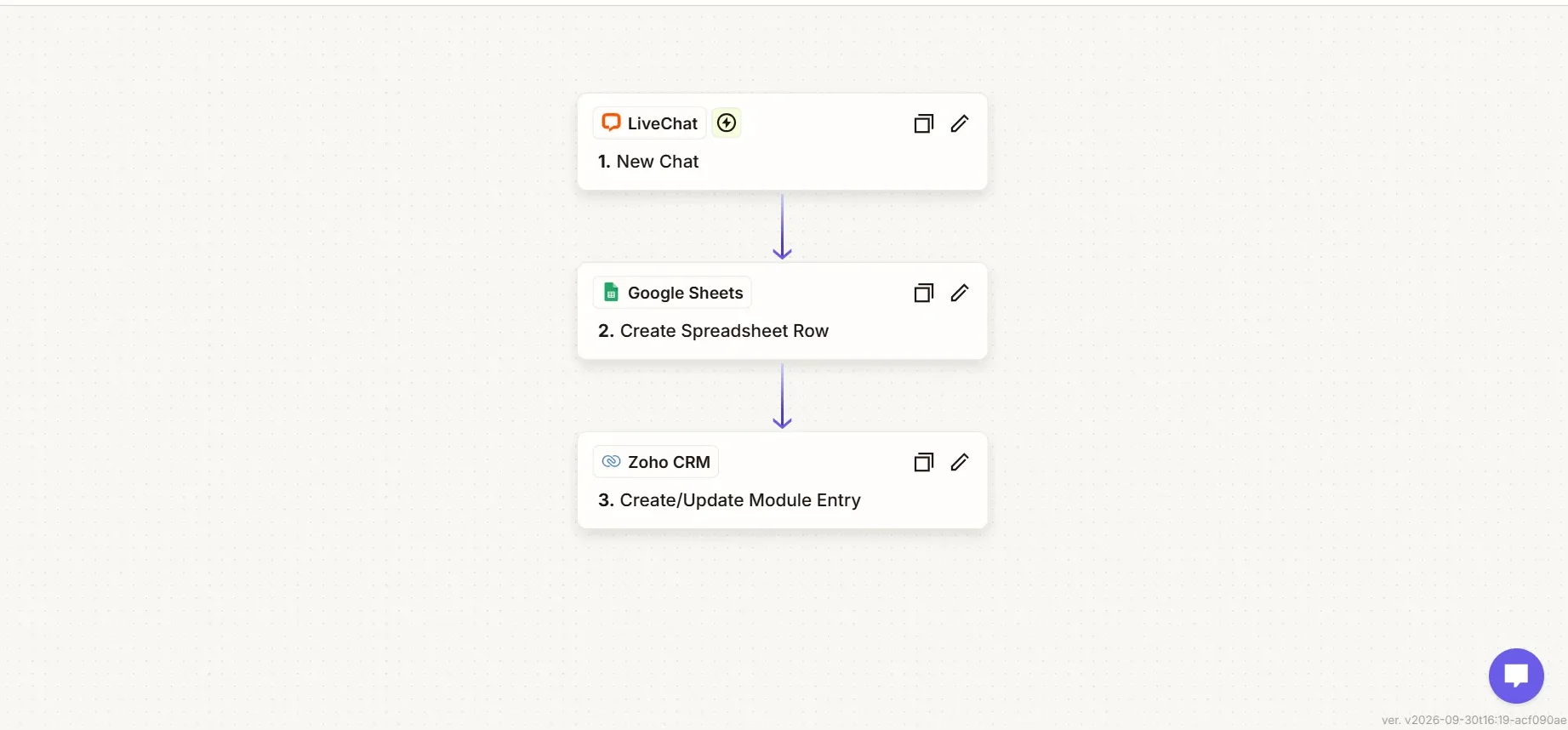
Workflow: LiveChat → Google Sheets → Zoho CRM
Not every potential customer fills out a form. Some visitors prefer asking questions through live chat before deciding whether to enquire.
LiveChat can start an automated workflow when a new conversation begins. The screenshot shows the New Chat trigger followed by actions in Google Sheets and Zoho CRM.
How it works:
- A website visitor starts a new chat in LiveChat.
- Zapier records the available chat information in Google Sheets.
- Zoho CRM creates or updates a record using the mapped details.
One important detail: a new chat does not always include a visitor's email address or phone number. If the CRM requires these fields, the workflow must collect them or apply suitable conditions before creating a record.
Why it's useful: Businesses can keep track of website conversations and transfer usable contact details into their CRM for further follow-up.
Best for: Service businesses, online education providers, and websites offering sales consultations.
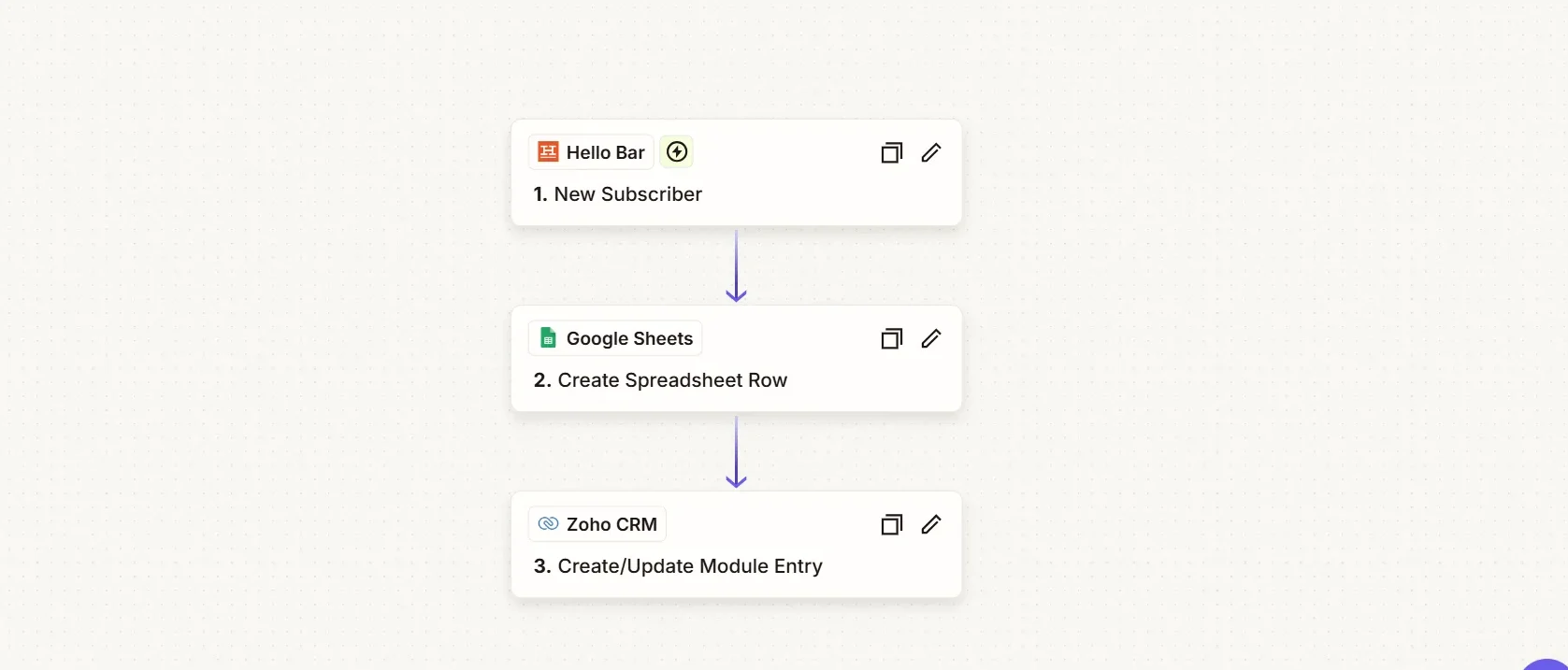
Example 5: Hello Bar to Google Sheets and Zoho CRM
Workflow: Hello Bar → Google Sheets → Zoho CRM
Website announcement bars and popups can invite visitors to register for updates, download a resource, or request information. Hello Bar is one tool businesses can use to collect these sign-ups.
Instead of exporting new subscribers manually, Zapier can transfer their details into a spreadsheet and CRM.
How it works:
- A website visitor starts a new chat in LiveChat.
- Zapier records the available chat information in Google Sheets.
- Zoho CRM creates or updates a record using the mapped details.
Why it's useful: Marketers can track website sign-ups in one place and connect eligible subscribers with the appropriate team or follow-up process.
Best for: Website lead capture, webinar promotions, resource downloads, and newsletter registrations.
Important: A subscriber's consent must be respected before sending promotional messages. A signup does not always grant permission for every type of marketing communication.
How to Create Your First Zap
A simple two-step automation is the best way to learn Zapier. Here's a practical setup using Google Ads lead forms and Google Sheets
Step 1: Create an Account
Visit Zapier and sign in or create an account.
Step 2: Choose the Trigger
Create a new Zap, select Google Ads, and choose the available New Lead Form Entry trigger. Connect the Google Ads account and select the relevant lead form.
Step 3: Add the Action
Choose Google Sheets and select Create Spreadsheet Row. Connect your Google account, then select the spreadsheet and worksheet.
Step 4: Map the Fields
Match the incoming lead information to your spreadsheet columns. For example, map Full Name to Name, Email to Email Address, and Phone to Mobile Number.
Step 5: Test and Publish
Run a test, confirm the details appear in the correct columns, and publish the Zap. Review the Zap history regularly for errors or missing information.
This example uses Google Ads' native lead-form submissions. The account permissions and available plan features must support the integration.
FAQs
1. Is Zapier Easy to Learn?
Yes. Beginners can build basic workflows using triggers, actions, and visual field mapping without writing code.
2. Can Zapier Send Meta Leads to a CRM?
Yes. Supported Meta lead form submissions can be sent to a CRM such as LeadSquared, provided the right accounts and permissions are connected.
3. Can Zapier Connect Website Forms?
Yes. Supported form integrations or webhooks can send website submissions to Google Sheets and CRM tools.
4. Can Zapier Capture LiveChat Enquiries?
Yes. Zapier can log new chats and send available visitor details to connected tools. A CRM record may require additional contact fields.
5. Is Zapier Free?
Zapier offers a free plan with limited tasks and two-step Zaps. Premium apps, webhook triggers, and multi-step workflows require eligible paid access.
6. Does Zapier Improve Ad Results?
Not directly. It reduces manual data handling and makes lead information easier to access, which can support better marketing decisions and follow-ups.
conclusion
For a business website, leads can arrive from several places: Meta Ads, Google Ads lead forms, contact forms, live chat, and signup bars. Managing each source separately creates avoidable work.
Zapier automation connects these tools so marketers can organise lead data and share it with sales systems more efficiently. The five workflows in this article demonstrate how the same idea applies across common lead-generation channels.
Start with a straightforward workflow, test it carefully, and add more steps only when they solve a real problem.
The goal is not more tools. It's less manual work and better use of the tools you already have.